
Settings
Settings is where you configure the team and each major tool. Open Settings in the side menu, then pick a page below.
General
Settings → General
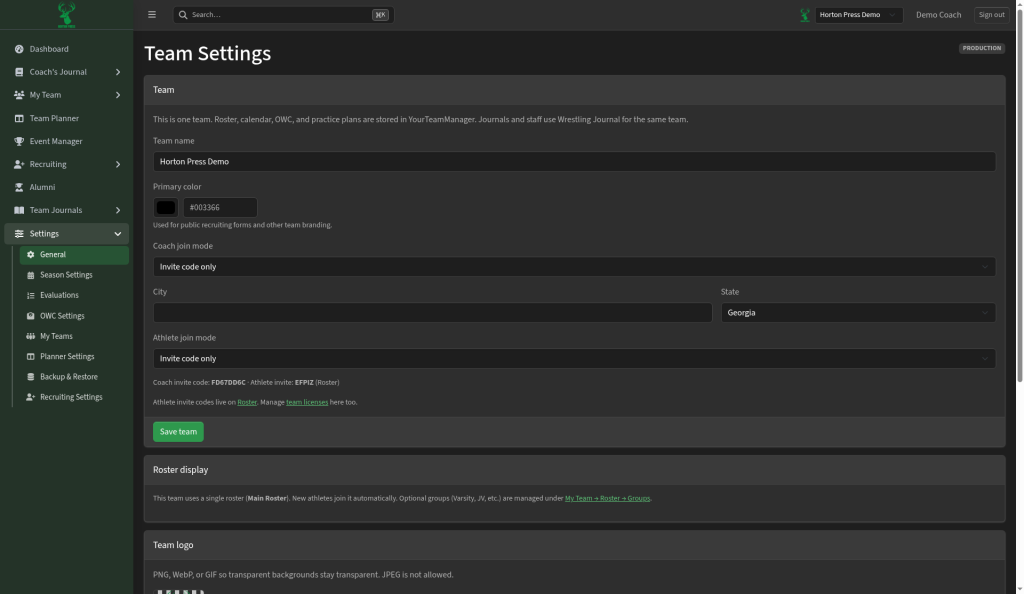
- Team name and primary color (used on public forms and branding)
- How coaches and athletes can join (for example invite code only)
- City and state
- Invite codes for coaches and athletes
- Team logo upload
- Notes about the main roster and groups (groups are managed under Roster)
Select Save team after you change team basics.
Season Settings
Settings → Season Settings
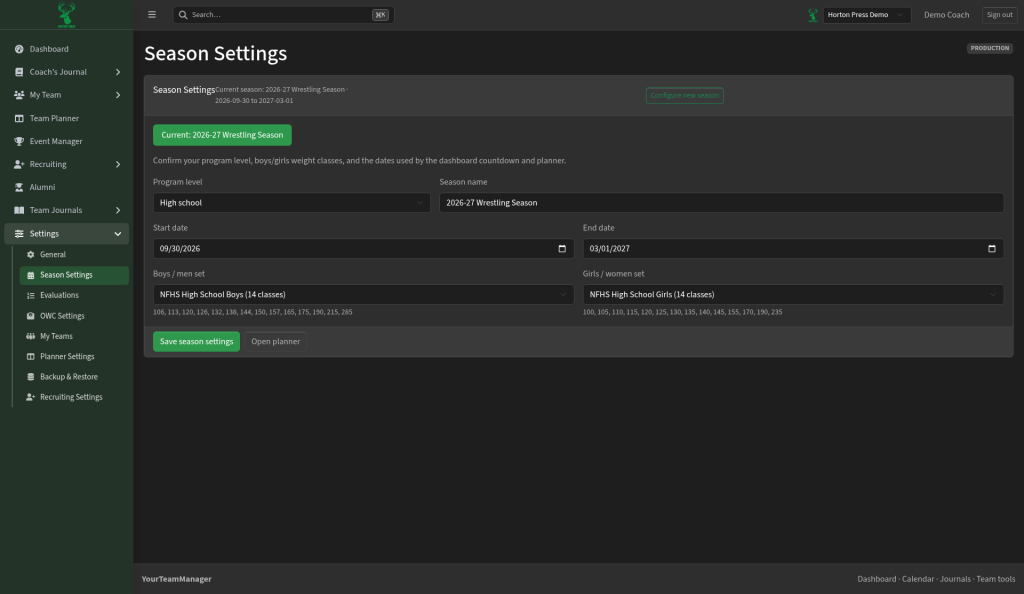
- See the current season name and date range
- Set program level (for example High school)
- Edit season name, start date, and end date
- Choose boys/men and girls/women weight class sets
- Save season settings, or Configure new season when you start a new year
- Open planner jumps to practice planning when you need it
Evaluations
Settings → Evaluations
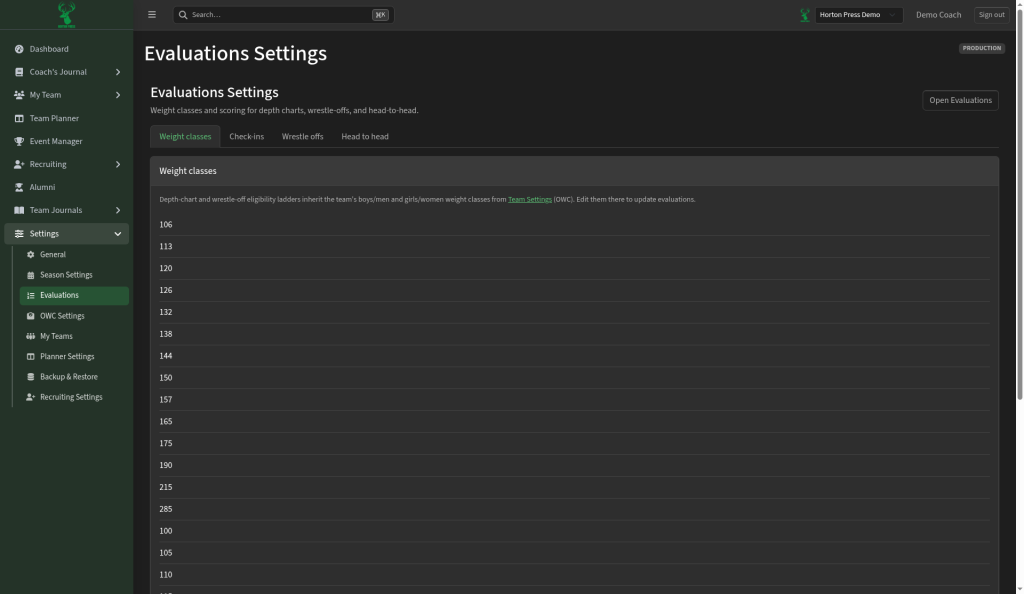
Options that control how depth chart rankings and evaluation rules work for your team.
OWC Settings (Optimal Weight Calculator)
Settings → OWC Settings
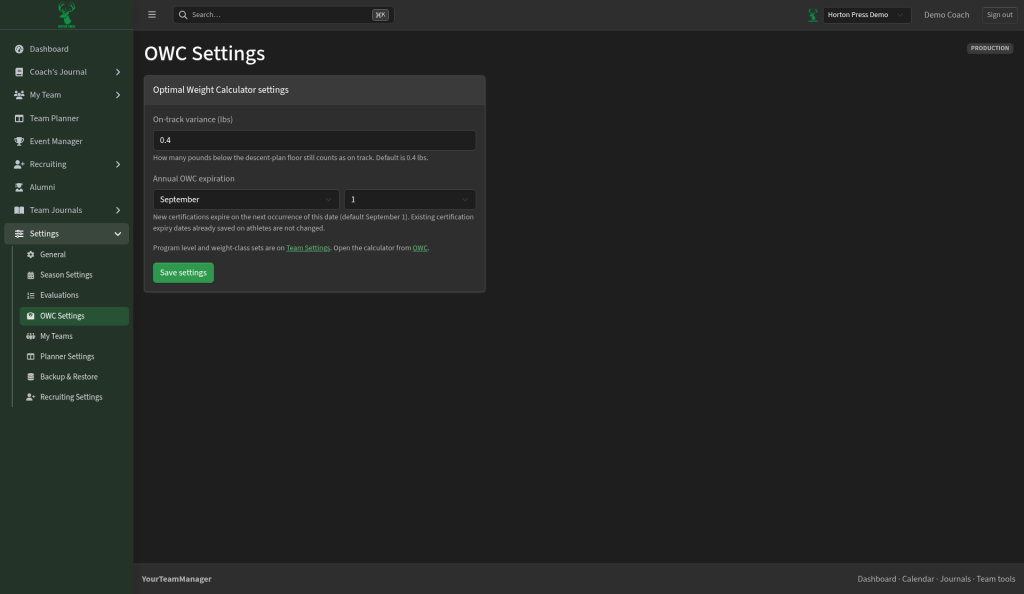
Adjust variance, annual expiration, and related weight-tracker rules (the same ideas as the first-time setup popup on the Optimal Weight Calculator page).
My Teams
Settings → My Teams
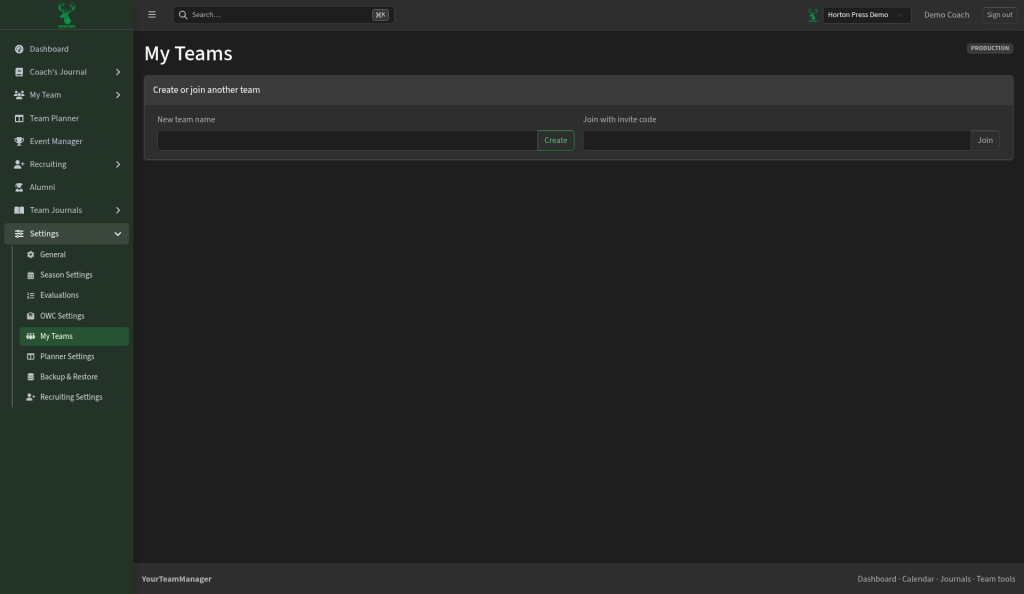
Create a new team or join one with an invite code. This page does not list every team you already belong to — use the team switcher in the top bar to change which team you are working on.
Planner Settings
Settings → Planner Settings
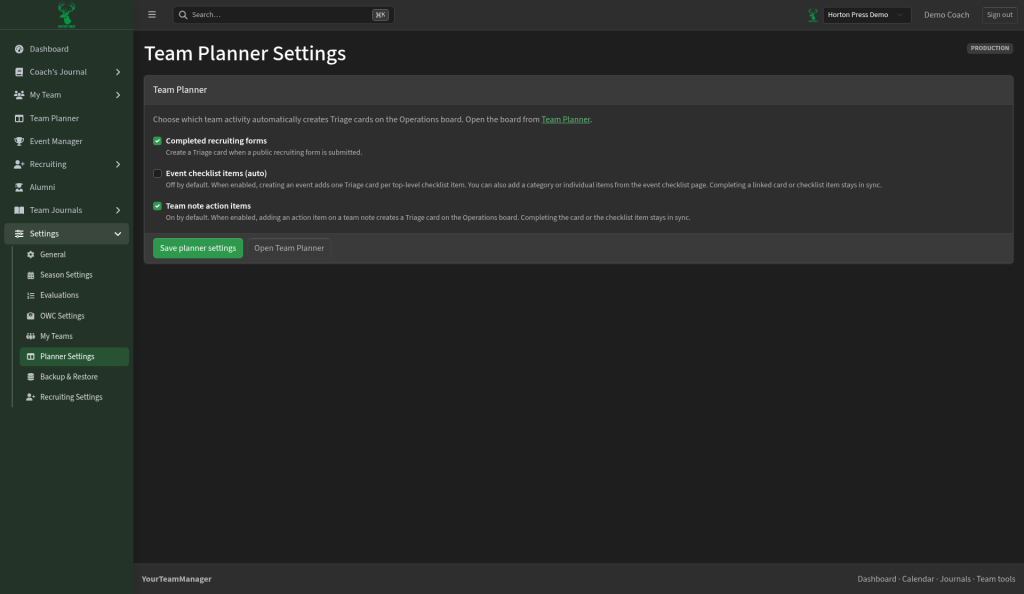
Defaults and preferences for Team Planner boards and related task behavior.
Backup & Restore
Settings → Backup & Restore
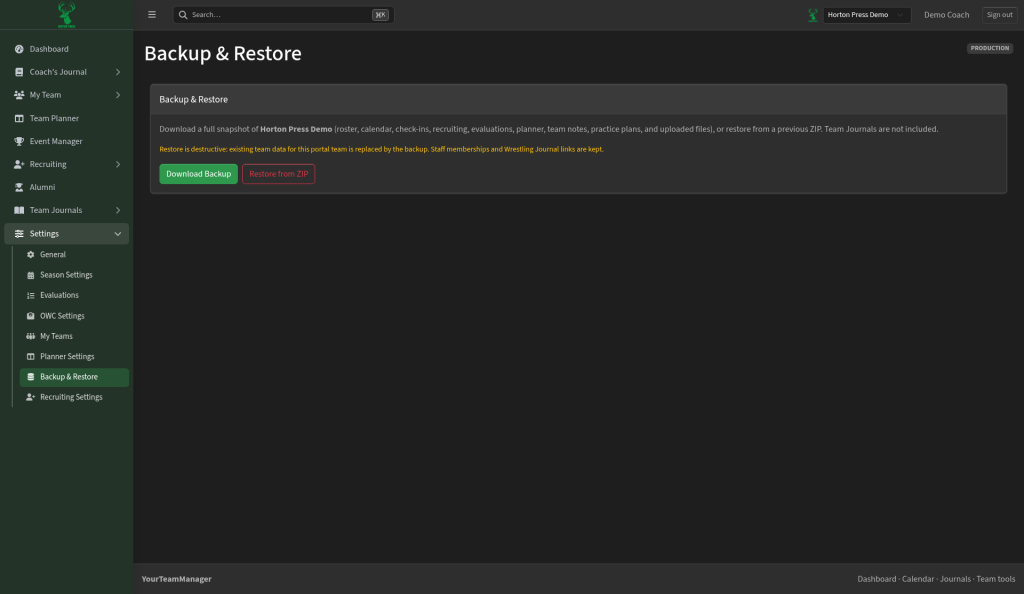
Create a backup of team data or restore from a previous backup when you need a safety net.
Recruiting Settings
Settings → Recruiting Settings
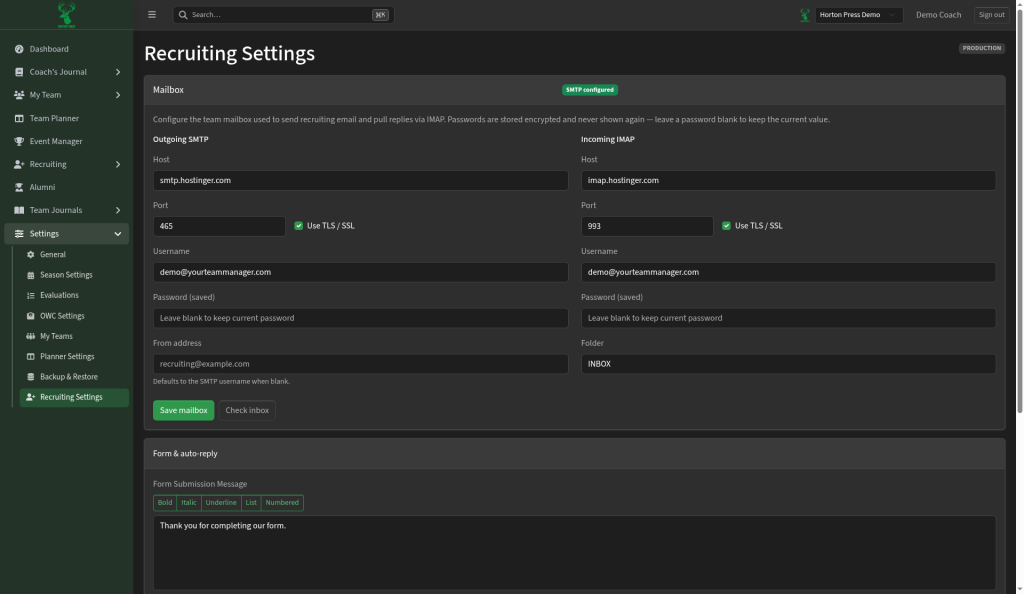
- Connect the team mailbox used for recruiting email (outgoing and incoming)
- Save mailbox settings and check the inbox when testing
- Edit the message recruits see after they submit the public recruiting form
Keep mailbox passwords only in the settings fields — never share them in help docs or chat.