
Optimal Weight Calculator
The Optimal Weight Calculator (often shortened to OWC in the menu) helps you see whether each athlete is on track for a chosen weight class. In plain words: it compares recent weights to a target and flags who is on track, too light, or too heavy.
How to open it
In the side menu, open My Team, then select OWC.
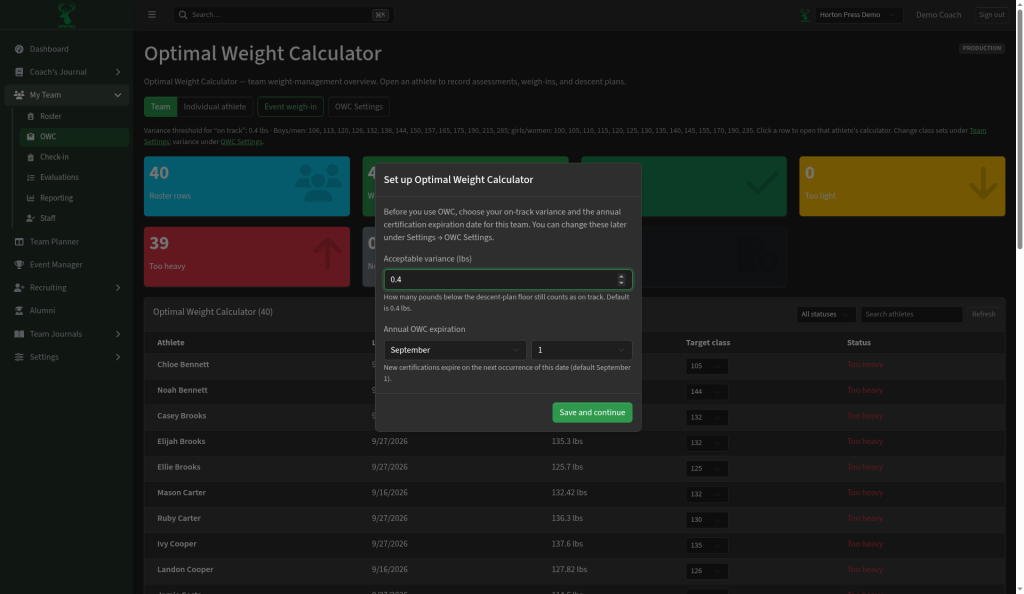
First-time setup
The first time you open it for a team, a setup window appears. You choose:
- Acceptable variance (lbs) — how many pounds under the plan still counts as on track (the app calls this variance).
- Annual OWC expiration — the month and day when assessments expire for the year.
Select Save and continue when you are ready.
Tabs
- Team — overview cards (roster size, on track, too light, too heavy) plus a table of every athlete, last assessment, target class, and status.
- Individual athlete — dig into one person’s plan and history.
- Event weigh-in — record weights for a specific event.
- OWC Settings — change variance, expiration, and related rules later.
Everyday use
- Set each athlete’s target class in the team table.
- Record weigh-ins (from Check-in or the event weigh-in tab).
- Watch the status labels so weight cut (descent) and certification stay easy to see.